Google Business Profiles Can Display Social Media Posts
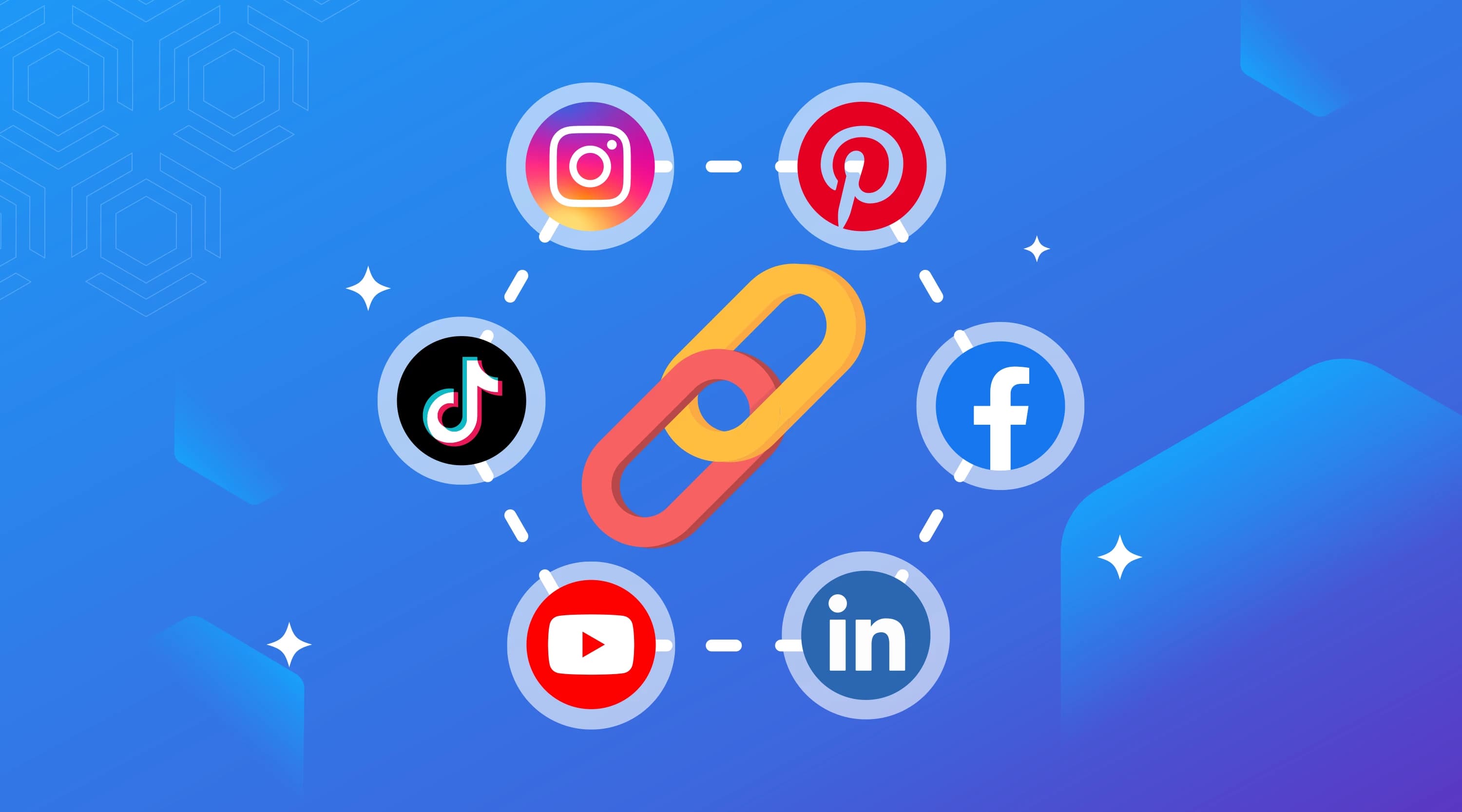
Cover image: Google has announced a new feature that can display social media posts on Google Business Profiles.
Currently, Google is integrating social media with Google Business Profiles, allowing users to view a business's social media posts in search results.
Key Takeaways
- Google has announced a new feature that can display social media posts on Google Business Profiles.
- This feature can apply to several social media platforms such as Facebook, YouTube, Instagram, and others.
- Since it's newly rolled out in specific locations, some areas may not yet have access to this feature entirely.
Google has just announced its latest feature that automatically displays social media posts on Google Business Profiles. Previously, Google had released the feature to add social media profiles to business profiles. Eventually, linked social media posts will appear when customers create your Business Profile.
This update can maximize online business activity and social media engagement. With this feature, you can control which social media posts will be displayed on your Google Business Profile. Since it's newly rolled out in specific locations, some areas may not yet have access to this feature entirely.
How to Set Up Social Media Links
Currently, the social media links feature can be applied to several social media platforms such as Facebook, Instagram, LinkedIn, Pinterest, TikTok, X (formerly Twitter), and YouTube.
Each social media platform has its own link format, so you need to pay attention to the format to ensure that social media posts and profiles can appear on Google Business Profiles. Here are the details of the formats you need to know:
- Facebook: https://www.facebook.com/{username}
- Instagram: https://www.instagram.com/{username}
- LinkedIn: https://www.linkedin.com/in/{username} or https://www.linkedin.com/company/{username}
- Pinterest: https://www.pinterest.com/{username}
- X: https://www.twitter.com/{username}
- Youtube: https://www.youtube.com/channel/{username}, https://www.youtube.com/user/{username}, or https://www.youtube.com/@{username}
Below are the steps to set up social media links to be displayed on your Google Business profile.
Adding Social Media Links
You can add one link from each social media site, such as one link from LinkedIn and one link from Facebook. The steps to add links to your Google Business profile are as follows:
- Sign in to your Business Profile.
- Click Edit Profile, then Business Information, then Contact.
- Click Social Media Profiles, then select the dropdown arrow.
- From the dropdown options, select the social media link you want to add.
- Enter the link in the website address field.
- Click Save.
Editing and Removing Social Media Links
In addition to adding new links to your Google Business Profile, you can also edit and remove previously added links. To edit a link, follow the same steps as adding a link and simply update the link in the website address field, and remember to save it.
Furthermore, if you want to remove a social media link from your profile, you can click the Trash icon and save your settings.
Additional Notes Regarding Social Media Link Settings
It's important to note that Google may automatically add your social media links to your Google Business Profile.
If you wish to remove links that Google has automatically added, make sure to consider a few things before doing so, such as replacing the automatic links with the ones you desire.
However, if you still wish to remove these automatic links, you can contact the Google Business Profile Help Center.
Furthermore, regarding the addition of links, you can add the same social media links to different Business Profiles. However, you're only allowed to update one link for one business at a time through the Search, Maps, or by using the API to manage multiple locations at once.
Article Source
As a dedicated news provider, we are committed to accuracy and reliability. We go the extra mile by including credible sources to support the data and information we present.
Google Business Profile Help: https://support.google.com/business/answer/13580646?hl=en
For more information about cmlabs and our services, please contact us at:
E-mail :
marketing@cmlabs.coPhone : (0341) 475665
Risca Fadillah
As an SEO Writer, I stay up-to-date with the latest SEO practices and industry insights to craft content that is search-optimized, credible, and genuinely valuable, designed to perform at its best on SERPs.
Another post from Risca


More from cmlabs News -your daily dose of SEO knowledge booster
cmlabs x LPTUI Collaborated to Deliver an Online Psychotest Platform for a Government Program
cmlabs Won Bronze Medal & Top Outstanding Project at the Prestigious BRICS Industrial Innovation Contest 2025
cmlabs won a Bronze Medal & Top Outstanding Project at the BRICS Industrial Innovation Contest 2025 with Orion, an AI for data-driven marketing.
cmlabs Becomes Guest Speaker at BRI Group Meeting, Highlights the Importance of SEO for PR Corporate Branding
cmlabs participated as a Guest Speaker at the BRI Group meeting, discussing the importance of SEO in supporting PR and corporate branding.